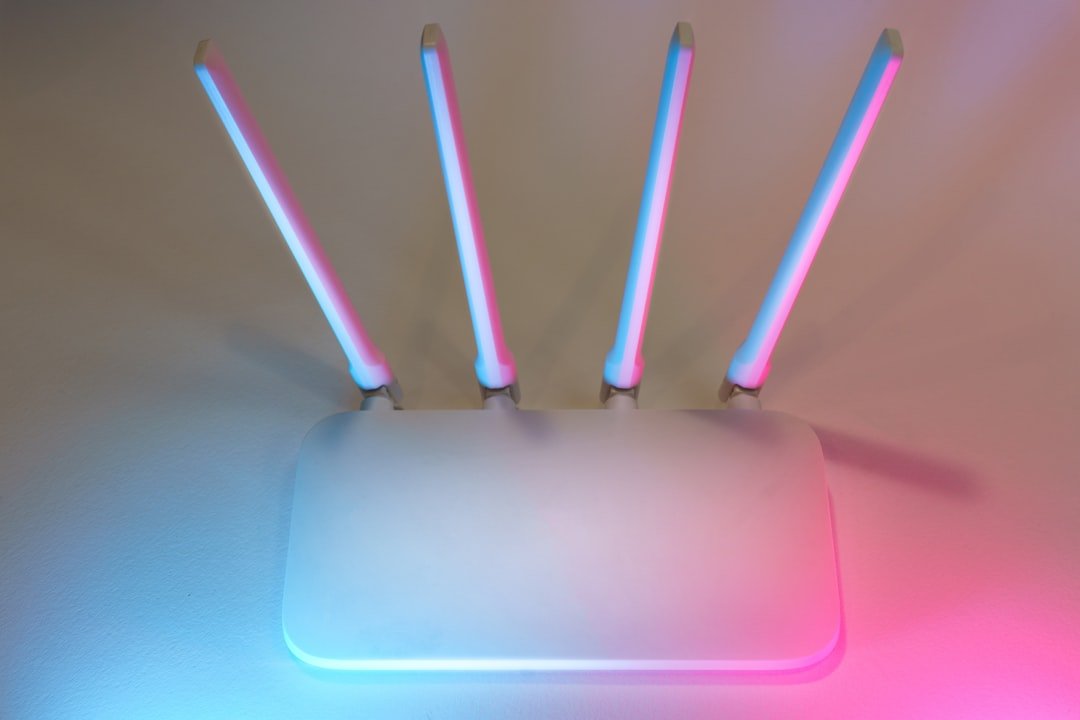
Wi-Fi connection drops occur when a device loses its connection to a wireless network, resulting in interrupted internet service. These interruptions can cause slow loading times, buffering during video streaming, or complete network disconnection. Understanding the causes of connection drops is essential for effective troubleshooting and resolution.
Several factors contribute to Wi-Fi connection instability. Environmental factors include physical obstructions such as walls, furniture, and electronic devices that interfere with wireless signals. Hardware-related causes involve router performance limitations and the wireless capabilities of connected devices.
Software factors include network configuration settings, driver compatibility, and firmware versions. Identifying these contributing elements is fundamental to diagnosing and resolving connectivity issues.
Common Causes of Wi-Fi Connection Drops
Several common culprits can lead to Wi-Fi connection drops, and identifying them is essential for effective troubleshooting. One of the most prevalent causes is interference from other electronic devices. For instance, microwaves, cordless phones, and Bluetooth devices can emit signals that disrupt Wi-Fi frequencies, particularly those operating on the 2.4 GHz band.
This interference can lead to sporadic disconnections or degraded performance, making it difficult for users to maintain a stable connection. Another significant factor contributing to Wi-Fi drops is network congestion. In environments where multiple devices are connected to the same network, bandwidth can become strained.
This is particularly common in households with numerous smart devices, such as smartphones, tablets, smart TVs, and IoT devices. When too many devices attempt to access the internet simultaneously, it can overwhelm the router’s capacity, resulting in dropped connections or slow speeds. Additionally, the distance between the device and the router can also impact connectivity; as the distance increases, the signal strength diminishes, leading to potential disconnections.
Troubleshooting Wi-Fi Connection Drops: Basic Steps

When faced with Wi-Fi connection drops, there are several basic troubleshooting steps that users can take to identify and resolve the issue. The first step is to restart both the router and the device experiencing connectivity problems. Power cycling the router can clear temporary glitches and refresh the network connection.
Similarly, restarting the device can help reset its network settings and re-establish a stable connection. Another fundamental step is to check for any physical obstructions between the router and the device. Walls, furniture, and appliances can all impede Wi-Fi signals.
If possible, repositioning the router to a more central location within the home can enhance signal strength and coverage. Additionally, ensuring that the router’s antennas are positioned correctly can also improve performance. Users should also verify that their device is within an optimal range of the router; moving closer may resolve connectivity issues.
Advanced Troubleshooting Techniques for Wi-Fi Connection Drops
For users who have attempted basic troubleshooting without success, advanced techniques may be necessary to diagnose and resolve persistent Wi-Fi connection drops. One effective method is to change the Wi-Fi channel on the router. Many routers operate on default channels that may be crowded with other nearby networks.
By accessing the router’s settings through its web interface, users can select a less congested channel, which may improve connectivity. Another advanced technique involves updating firmware on both the router and connected devices. Manufacturers frequently release updates that address bugs and improve performance.
Ensuring that both the router’s firmware and device software are up-to-date can mitigate issues related to compatibility and stability. Additionally, users may consider switching from a 2.4 GHz band to a 5 GHz band if their router supports dual-band functionality. The 5 GHz band typically offers faster speeds and less interference but has a shorter range; thus, it may be more suitable for devices located closer to the router.
Tips for Preventing Wi-Fi Connection Drops
| Step | Action | Details | Expected Outcome | Tools/Commands |
|---|---|---|---|---|
| 1 | Check Router Placement | Ensure router is centrally located and away from obstructions or interference sources | Improved signal strength and reduced drops | Visual inspection |
| 2 | Restart Router and Device | Power cycle both router and affected device to clear temporary glitches | Temporary resolution of connection drops | Power button or unplug/replug |
| 3 | Update Firmware and Drivers | Check for and install latest router firmware and device Wi-Fi drivers | Fix known bugs and improve stability | Router admin panel, Device manager |
| 4 | Check for Interference | Identify and minimize interference from other wireless devices or appliances | Reduced signal interference and drops | Wi-Fi analyzer apps |
| 5 | Change Wi-Fi Channel | Switch to less congested channel on 2.4 GHz or 5 GHz band | Improved connection stability | Router admin panel, Wi-Fi analyzer |
| 6 | Check Signal Strength | Measure signal strength at device location | Identify weak signal areas causing drops | Signal strength meter, Wi-Fi analyzer |
| 7 | Reset Network Settings | Reset network settings on device to clear misconfigurations | Resolve software-related connection issues | Device settings menu |
| 8 | Check DHCP and IP Settings | Ensure device is getting proper IP address and no conflicts exist | Stable IP assignment and connectivity | ipconfig / ifconfig commands |
| 9 | Test with Another Device | Connect a different device to the same Wi-Fi network | Determine if issue is device-specific or network-wide | Another Wi-Fi enabled device |
| 10 | Contact ISP | Check for outages or issues from Internet Service Provider | Resolve external network problems | ISP support contact |
Preventing Wi-Fi connection drops requires proactive measures that enhance network stability and performance. One effective strategy is to invest in a high-quality router that supports modern standards such as Wi-Fi 6 (802.11ax). These routers are designed to handle multiple devices more efficiently and provide better coverage compared to older models.
Additionally, using a mesh Wi-Fi system can significantly improve coverage in larger homes or spaces with challenging layouts. Regularly monitoring network usage can also help prevent congestion-related drops. Users should be aware of which devices are connected to their network and limit bandwidth-heavy activities during peak usage times.
For instance, scheduling large downloads or updates during off-peak hours can free up bandwidth for other users who may need a stable connection for video conferencing or online gaming.
Using Network Diagnostic Tools to Identify Wi-Fi Connection Issues

In addition to manual troubleshooting methods, various network diagnostic tools are available that can assist users in identifying Wi-Fi connection issues more effectively. Tools such as Wireshark allow users to analyze network traffic in real-time, providing insights into potential bottlenecks or sources of interference. By capturing packets of data transmitted over the network, users can pinpoint specific issues affecting their connectivity.
Another useful tool is a Wi-Fi analyzer app, which can help users visualize their network’s performance and identify areas of weakness. These apps provide information about signal strength, channel usage, and potential sources of interference from neighboring networks. By utilizing these diagnostic tools, users can make informed decisions about optimizing their network setup and addressing any underlying issues contributing to connection drops.
Seeking Professional Help for Persistent Wi-Fi Connection Drops
In cases where users have exhausted all troubleshooting options without success, seeking professional help may be necessary. Internet service providers (ISPs) often offer technical support services that can assist in diagnosing complex connectivity issues. They may conduct remote diagnostics or send technicians to assess hardware problems or line issues that could be affecting service quality.
Additionally, hiring a networking professional or consultant can provide tailored solutions for persistent Wi-Fi connection drops. These experts possess specialized knowledge and tools that allow them to conduct thorough assessments of home networks. They can identify specific problems related to equipment placement, interference sources, or configuration settings that may not be apparent to the average user.
Maintaining a Stable Wi-Fi Connection
Maintaining a stable Wi-Fi connection is essential in today’s digital landscape where connectivity plays a pivotal role in daily life. By understanding the causes of connection drops and implementing effective troubleshooting techniques, users can significantly enhance their online experience. From basic steps like restarting devices to advanced methods such as changing channels or utilizing diagnostic tools, there are numerous strategies available for addressing connectivity issues.
Moreover, investing in quality equipment and being proactive about network management can prevent many common problems associated with Wi-Fi drops. For those facing persistent challenges despite their best efforts, professional assistance offers a pathway to resolving complex issues that may be beyond individual capabilities. Ultimately, fostering a reliable Wi-Fi environment not only improves productivity but also enhances overall satisfaction with internet services.
FAQs
What are common reasons for Wi-Fi connection drops?
Common reasons include interference from other electronic devices, outdated router firmware, weak signal strength, network congestion, and hardware issues with the router or device.
How can I check if my Wi-Fi signal is weak?
You can check signal strength by looking at the Wi-Fi icon on your device or using a Wi-Fi analyzer app to measure signal strength in different areas of your home or office.
What should I do if my Wi-Fi keeps disconnecting?
Try restarting your router and device, updating your router’s firmware, moving closer to the router, reducing interference from other devices, and checking for network congestion.
Can outdated router firmware cause Wi-Fi drops?
Yes, outdated firmware can lead to connectivity issues. Keeping your router’s firmware updated ensures better performance and security.
How does interference affect Wi-Fi connections?
Interference from devices like microwaves, cordless phones, and other Wi-Fi networks can disrupt the signal, causing drops or slow speeds.
Is it helpful to change the Wi-Fi channel to fix connection drops?
Yes, switching to a less congested Wi-Fi channel can reduce interference and improve connection stability.
When should I consider replacing my router?
If your router is old, frequently drops connections despite troubleshooting, or does not support current Wi-Fi standards, it may be time to replace it.
Can the number of connected devices cause Wi-Fi drops?
Yes, too many devices connected simultaneously can overload the router, leading to dropped connections or slower speeds.
How can I prevent Wi-Fi drops in the future?
Regularly update your router firmware, position your router centrally, minimize interference, use strong passwords to prevent unauthorized access, and consider upgrading your equipment if needed.
Is it necessary to contact my Internet Service Provider (ISP) for Wi-Fi issues?
If troubleshooting steps do not resolve the problem, contacting your ISP can help identify if there are service outages or issues with your internet connection.